

Every parametric CAD tool runs on constraints, and most of them make you feel it: sketches that lock up while you're still exploring, warnings before you've decided anything. Zenve3D takes a different line, and it fits in one sentence: tapped geometry is free; typing is what dimensions.
Draw first, decide later
Sketch a rectangle by tapping two corners and every line stays draggable — grab a corner and the shape follows your finger. Close a loop, add more geometry, connect things: none of it can over-constrain your sketch, because a tap never creates a driving dimension.
The moment you type a value — into the pill that rides your ghost while drawing, or onto a dimension later — that number becomes law. Exactly the fields you typed become driving dimensions; everything else stays loose. So the sketch hardens at the pace you choose: rough out the shape by feel, then lock down the dimensions that actually matter, one number at a time.
Dimensions take expressions, not just numbers. Type wall * 2 and the dimension follows your wall parameter forever — that's the thread that lets one slider rebuild a whole part.
The ink tells you where you stand
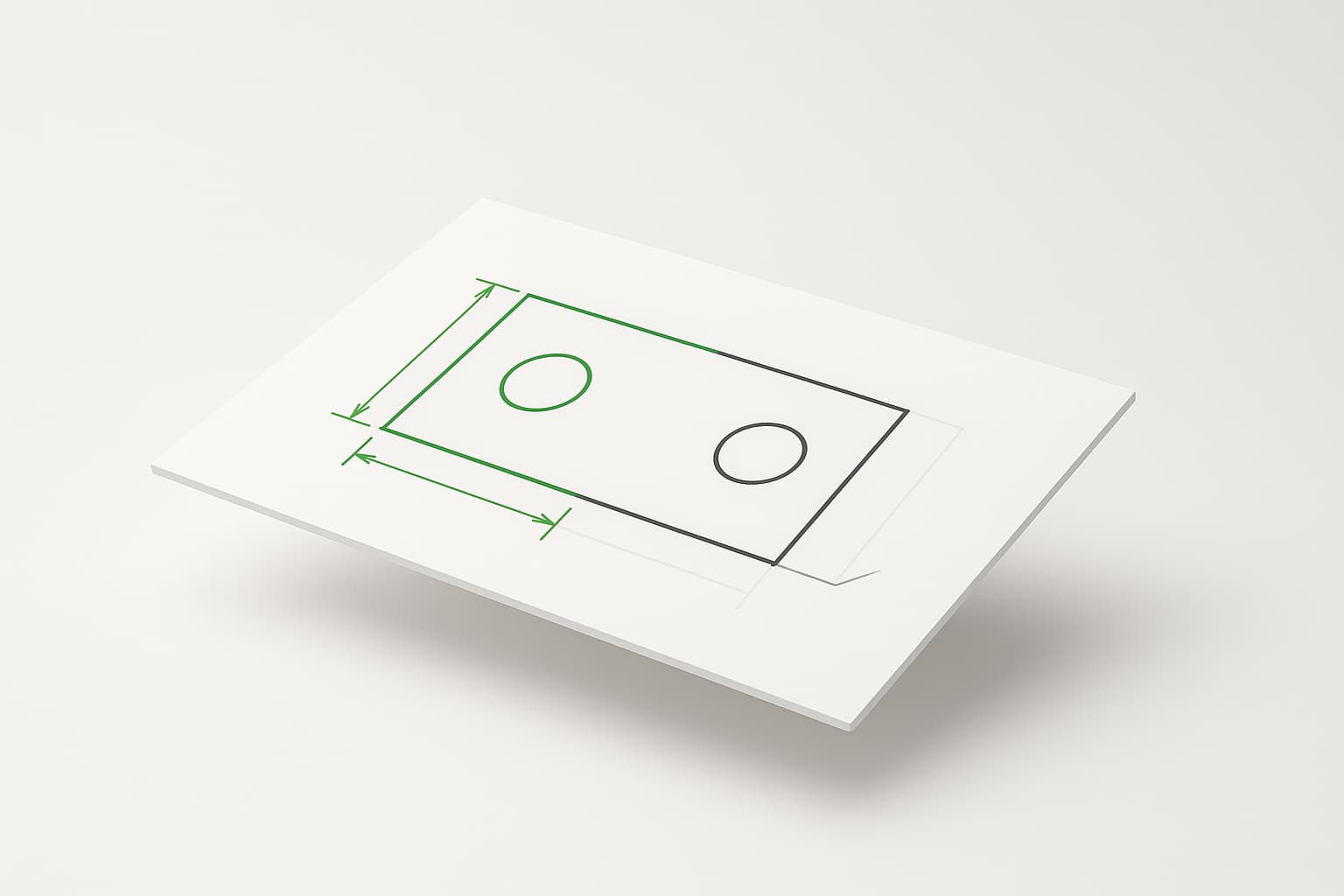
You never have to ask the app whether a sketch is fully defined — the ink answers:
- Plain ink is free: it can still move, and dragging it is how you find out which way.
- Green ink is constrained: locked by dimensions and constraints, it will not drift.
- Red ink is conflicting: two constraints are fighting, and the sketch is telling you where.
This is a deliberate departure from the blue-and-black convention Fusion users know. Green means done — when the whole sketch is green, it's fully defined, and the degrees-of-freedom verdict in the sketch header says so too. The best test remains the oldest one: drag something. Whatever moves isn't locked yet.
The toolset
While you draw, inference does the quiet work — the ghost snaps to endpoints, alignments and tangencies, shows you what it's about to commit, and coincident constraints land on their own. On top of that, the toolbar carries the explicit tools: tangent, equal, midpoint, the alignment pair, plus radius and angle dimensions and the sketch fillet.
Equal and midpoint both shipped because someone building a real part asked for them — that's how most of the sketch toolbar has grown.
Example: a hole pair that stays centered
The classic enclosure move — two screw holes that must stay centered on a face, whatever size the face becomes:
- Draw a construction line across the face, corner to corner.
- Midpoint the sketch origin onto it — the rectangle is now centered on the origin, permanently.
- Place one hole, mirror it, and make the two radii equal.
Now widen the face by any amount, from a dimension or a parameter drag: the holes re-center themselves. That's the payoff of constraints over careful placement — the intent ("centered, matching pair") survives every future edit, instead of being something you redo by eye each time.
When constraints fight
Add a dimension that contradicts an existing one and the sketch doesn't corrupt or snap somewhere strange — the conflicting constraints turn red, the conflict panel lists them, and tapping one removes it. The app keeps the last valid state throughout; a failed solve should feel like resistance, not breakage. (How the solver pulls that off at interactive speed is its own post.)
Honest limits
A symmetric constraint — the one that puts a hole pair on center in a single step — isn't built yet; midpoint on a construction line is the working idiom, as in the example above. And mirror's copies are born free rather than linked to their source, the honest v1 until symmetric exists.
What's next
Symmetric is the most-requested constraint in the queue, and the sketch toolbar keeps growing from real parts hitting real walls.